OmniCRM — How the application works
ELECNET's business-development CRM for hotel, resort and infrastructure projects. All pictures in this guide show sample data.
1The core idea
Everything hangs off a Projop (Project Opportunity). Every company and every person has exactly one permanent card. What a company or person does on a Projop (level, role, Key, stance) is stored on that Projop, never on the card — so one person on three Projops is still one card.
2Getting around

| # | Control | What it does |
|---|---|---|
| 1 | Logo · version | Returns to Home. The version under the logo tells you which release you run. |
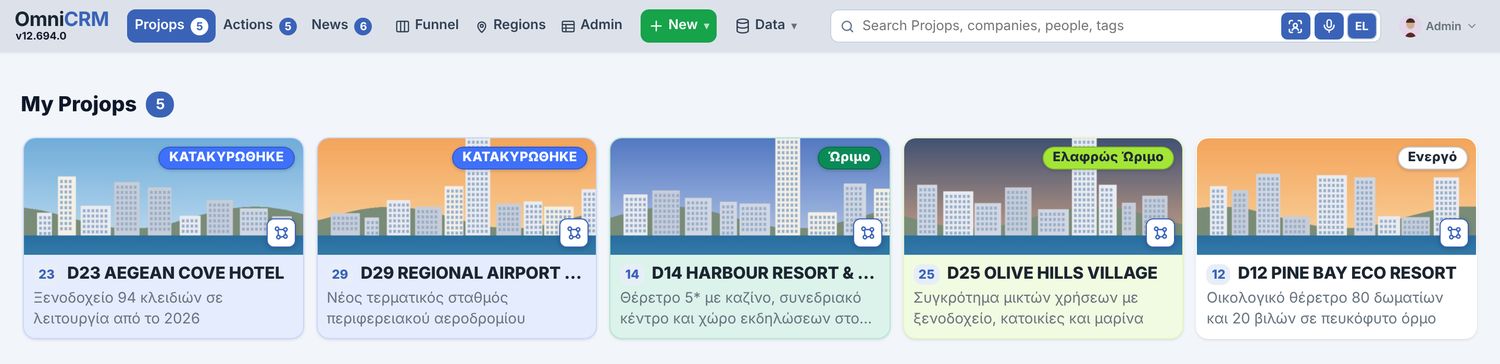
| 2 | Projops n | Home › your Projops (Mine first, then the ones you are Active on). |
| 3 | Actions n | Home › your actions, log entries and notifications. |
| 4 | News n | Home › articles on your Projops published in the last 14 days, plus the News topics. |
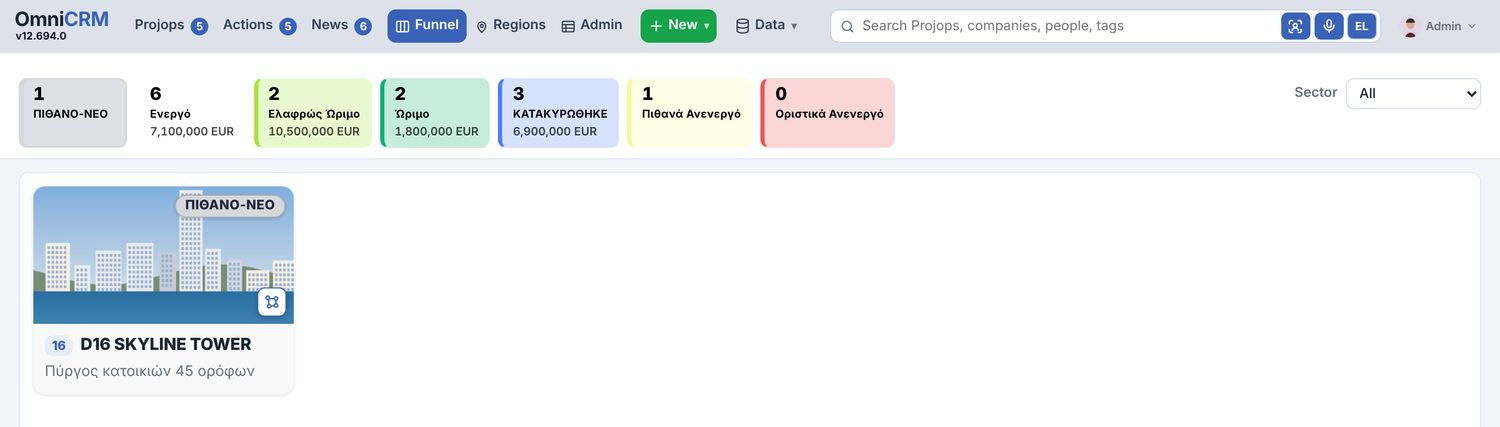
| 5 | Funnel | All Projops by Proj Status, with counts and Our budget per status. |
| 6 | Regions | Pick a region of Greece; its Projops are drawn on the map. |
| 7 | Admin | Projops, Organizations and People as lists or cards; bulk tools. |
| 8 | + New ▾ | New Organization, Contact or Projop (short forms; a duplicate warning appears while you type the name). |
| 9 | Data ▾ | Resources, data quality, duplicates, import / backup, reports, AI usage (chapter 14). |
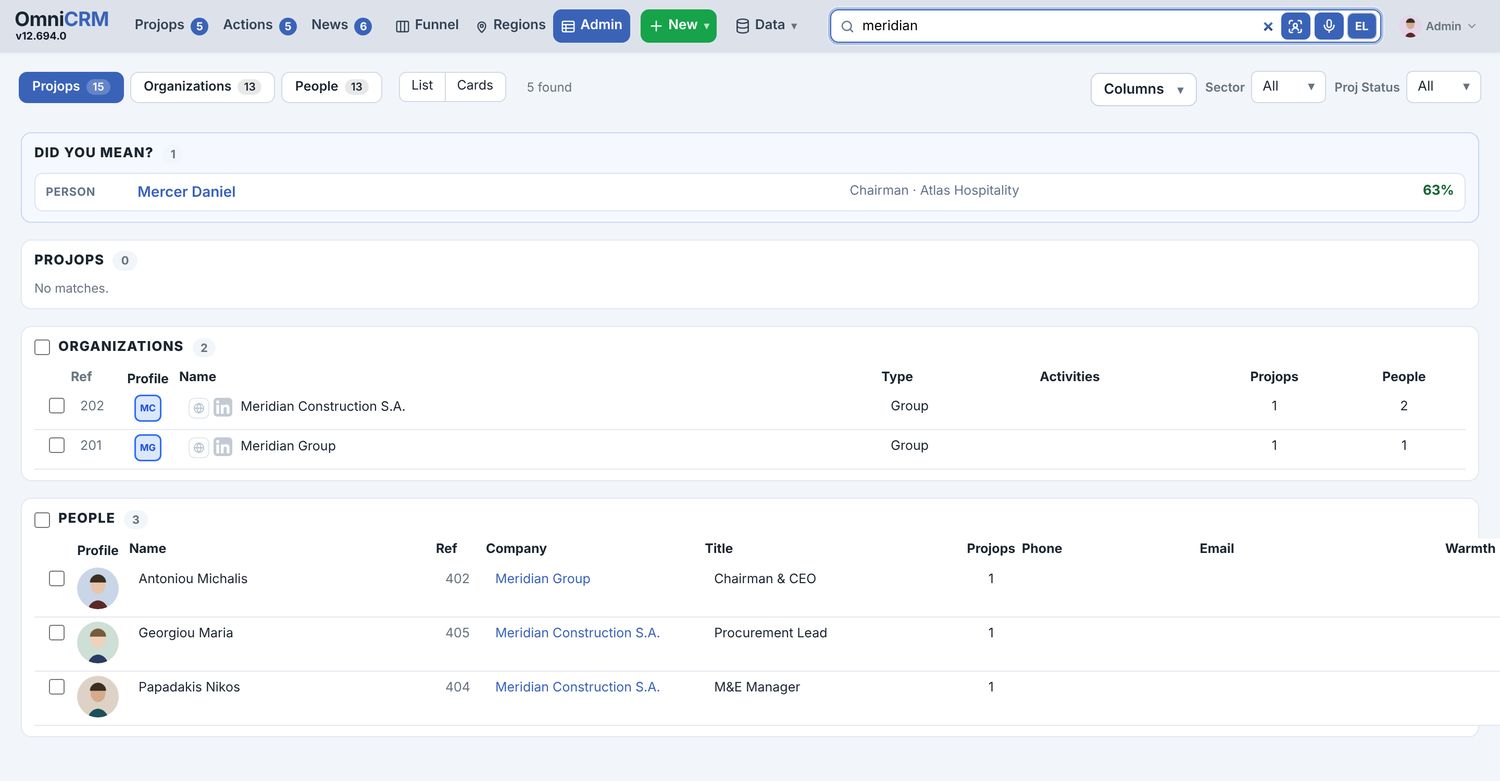
| 10 | Search | Projops, companies, people and tags, in Greek or Latin. Enter opens the results page with Did you mean? |
| 11 | Who is this? | Recognise a person from a photo (chapter 11). |
| 12 | Microphone | Say the name instead of typing it. |
| 13 | EL / EN | The language the microphone listens in; click to switch. |
| 14 | Your account | Guide, Cheat sheet, Tech spec, Sign out. |
- Browser Back / Forward move between OmniCRM places (Home, a Projop, a card, Admin tab…). A refresh returns to exactly the same place.
- Button colours: Edit edit · Save save · Cancel leave · Players main action · ✦ Research spends an AI call · Delete.
- Phone: install it as a Home Screen app (Safari › Share › Add to Home Screen). Menus collapse behind ☰; one Projop is open at a time.
3Home: Projops, Actions, News
Actions
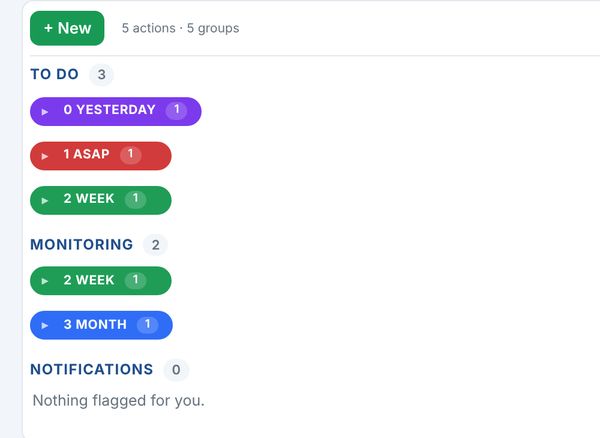

| Section / filter | Meaning |
|---|---|
| To do | Actions assigned to you. |
| Monitoring | Actions you assigned to others, and the other actions on your Projops. |
| Notifications | Actions and log entries that name you in Notify. |
| Filters | Person · Projop / category · Type (To do, Monitoring, Notification, Log) · Status · Sort by (Urgency, Progress, Projop name). |
| + New | Choose Action or Log first, then Link to a Projop, a category (e.g. "OmniCRM dev", + New category creates one), a company or a person. Button: Save. |
News
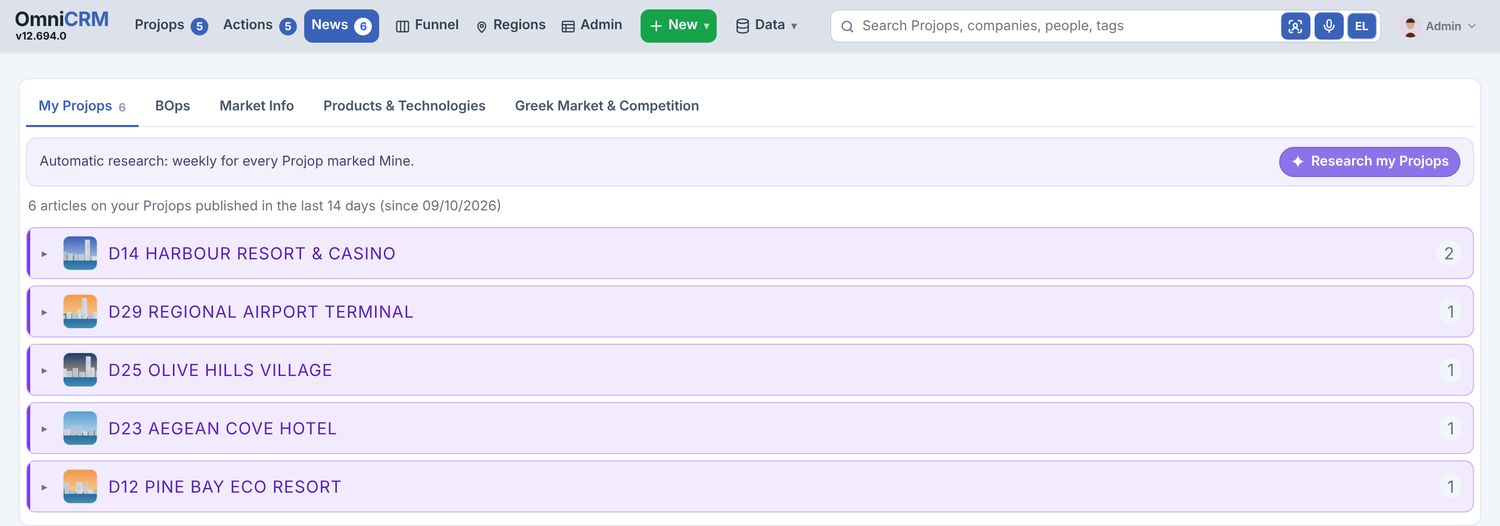
- My Projops uses the article's own publication date; older or undated articles stay on the Projop's Proj News.
- The four topics hold articles that belong to no Projop (add with title, link, text, photo). Filter them by tag chips; move an article to another topic; mark it read.
- ✦ Research my Projops runs the news research on all your Mine Projops now; the server also does it weekly.
4Funnel and Regions
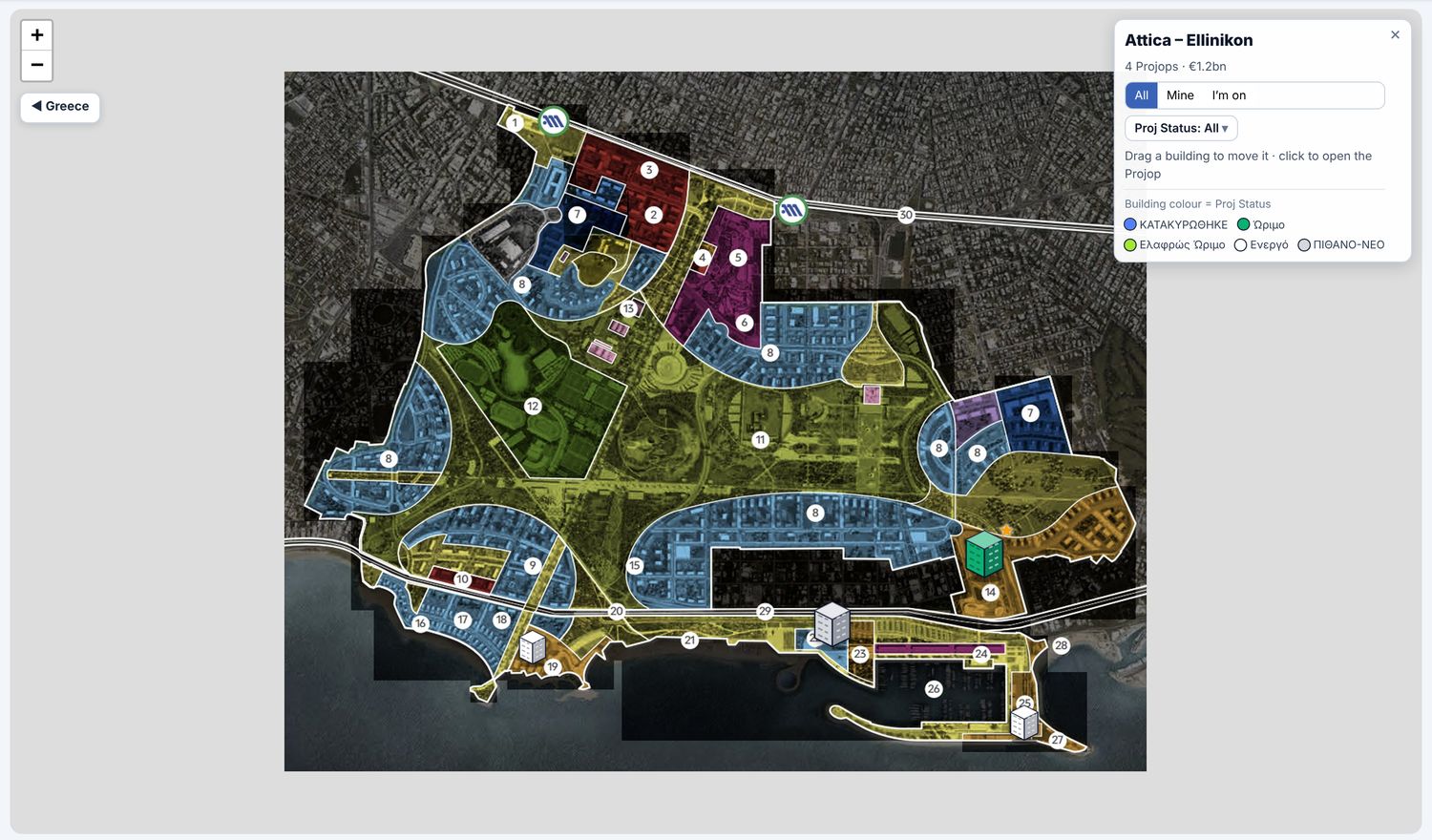
5Inside a Projop
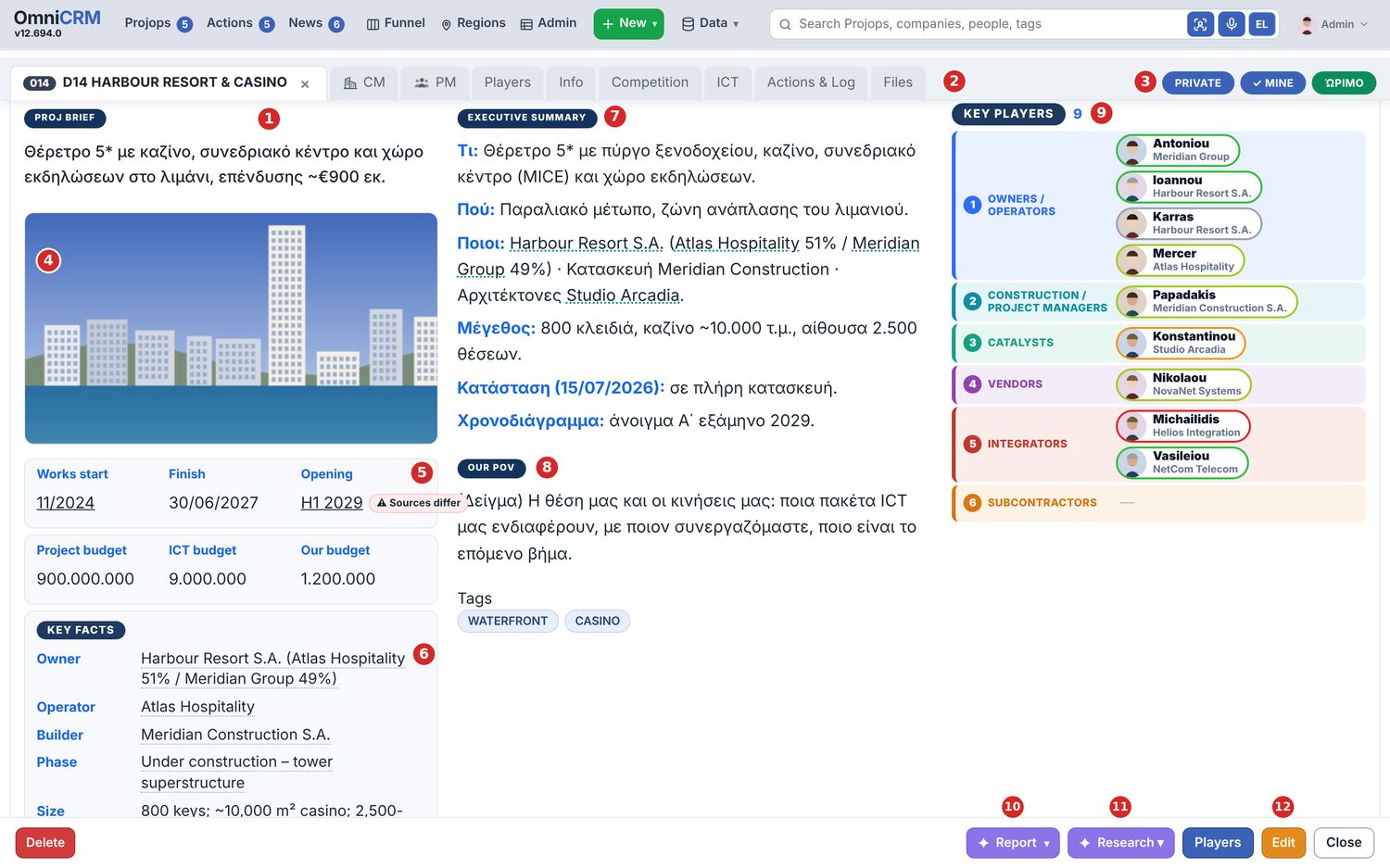
Several Projops open. Every Projop you open gets a tab in the top row of the card (ref + name); click a tab to switch, × closes it. There is no limit; the row scrolls sideways. The sections of the Projop are small pills above the photo: Overview · CM · PM · Players · Info · Notes (Notes = Actions, Log and Files), on the same line as Executive summary and Key companies. PRIVATE, MINE and the Proj Status sit under the photo. (On a phone one Projop is open at a time.)
| # | Part | What it is |
|---|---|---|
| 1 | Proj Brief | One phrase: the central idea of the project. |
| 2 | Tabs | CM · PM · Players · Info · Notes (Actions, Log, Files; + KD for the private KD account). |
| 3 | Pills | Sector (PRIVATE / PUBLIC / OTHER), Mine (your claim), Proj Status — one click changes each. |
| 4 | Picture | The project's picture (paste, upload or found by research). |
| 5 | Dates and budgets | Works start · Finish (our sales window) · Opening; Project, ICT and Our budget. |
| 6 | Key facts | Owner, operator, builder, phase, size… and Region; each with its source and uncertainty badges (chapter 9). |
| 7 | Executive summary | The project's story from the start until today, latest news in the last lines. It does not repeat the Key facts. It is rewritten when you mark one of the Projop's articles as read (✓), and the first time you open a Projop whose summary is still in the old six-line form; Research ▾ › Refresh Overview rewrites it with a review. |
| 8 | Our POV | Our position and next move (never written by AI), under the Executive summary. The free, searchable Tags are the last line of Key facts. Lower down, Our Notes & Actions has two tabs: Εξελίξεις (the diary's summary; a number opens that diary entry) and Σημειώσεις & Δράσεις (latest notes, open actions). |
| 9 | Key players | Two small tabs, Key Companies and Key Contacts. Each shows all six levels by number (hover the number for its name; an empty level is a thin row); a company is a box with its name; drag a chip to another level. On level 1 the left half is the owners, the right half the operators. + Add adds one. |
| 10 | ✦ Report ▾ | Projop report · Players (one A4) · Opportunity brief. |
| 11 | ✦ Research ▾ | The five research steps and the More tools (chapter 9). |
| 12 | Edit | Edit mode: pale yellow form, white fields. Nothing is saved until Save; Cancel (beside Save) throws the changes away. Closing the card or opening another one keeps what you typed. |
| Tab | Holds |
|---|---|
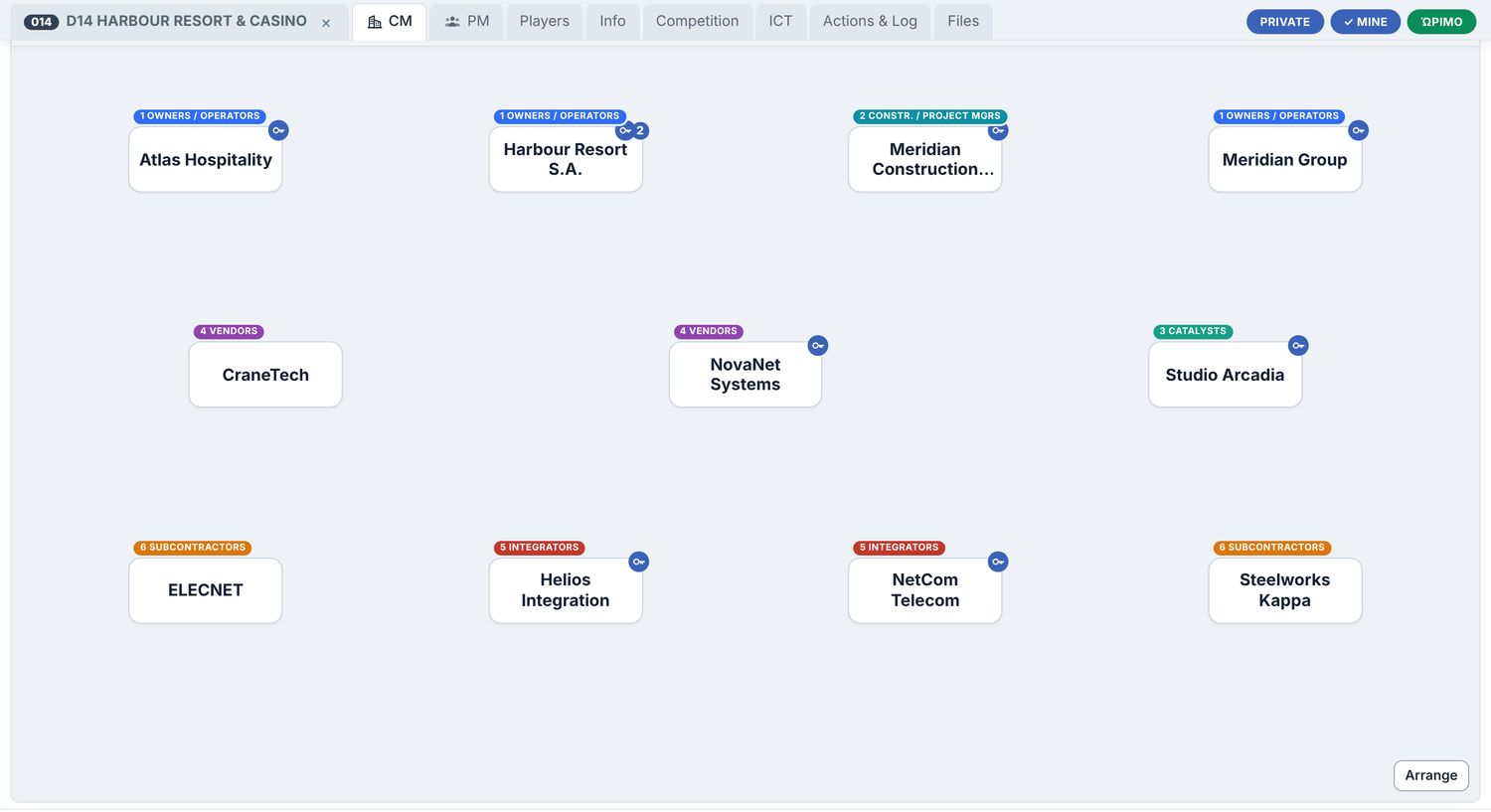
| CM — Companies Map | The companies as cards, labelled by level, with connections and comments (chapter 6). |
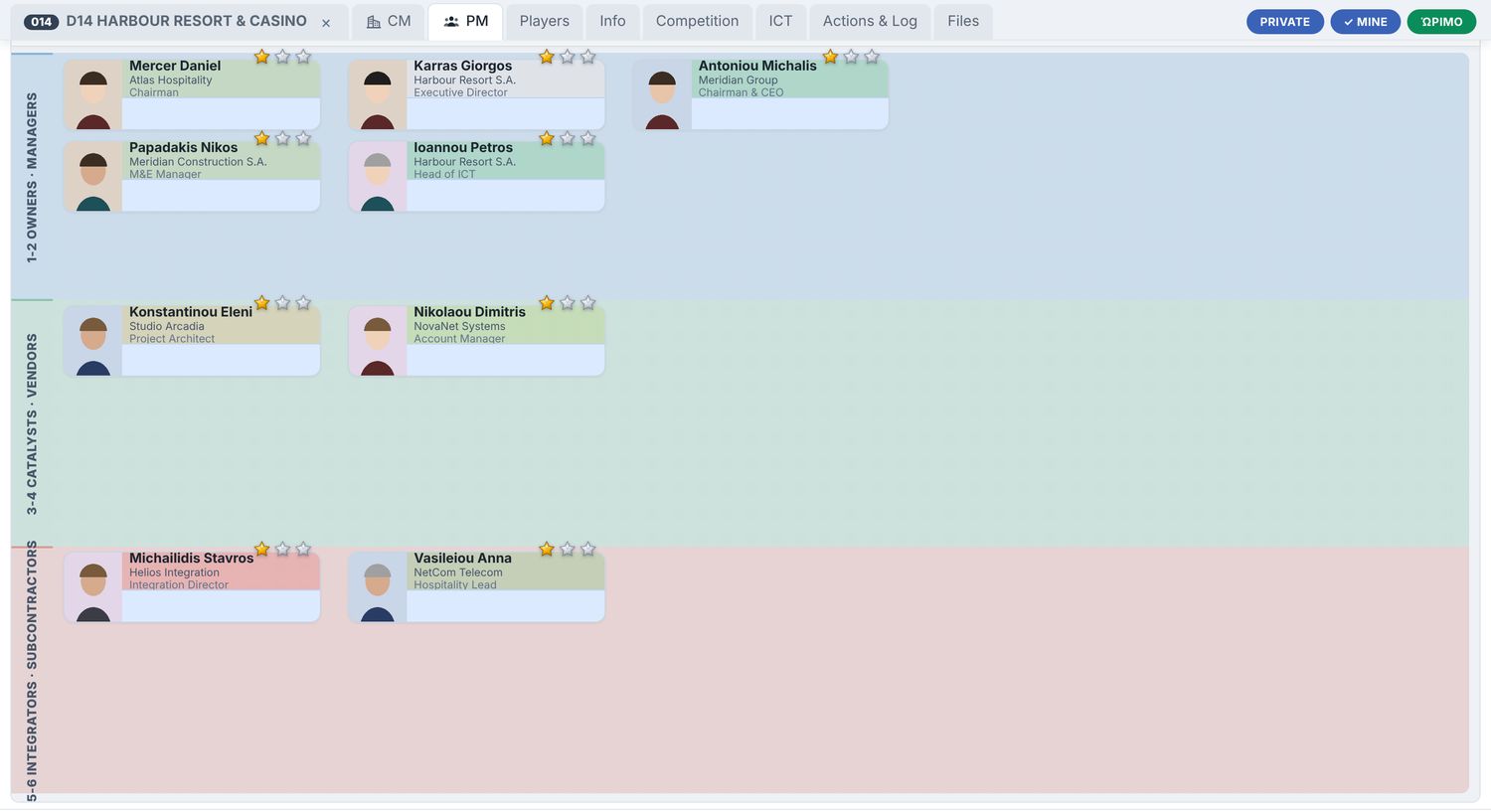
| PM — People Map | The key people in three bands, with importance stars, stance colours and gossip notes. |
| Players | Everyone involved, by level; drag to change level. |
| Info | Project History (The Project + The Journal), Diary-Gr, and Proj News (all articles) — chapter 7. |
| Competition | Who else is chasing it: paste a link or type a note. |
| ICT | Our ICT interests, the ICT diary (Eng / Gr) and ICT news; paste a link or type a note. |
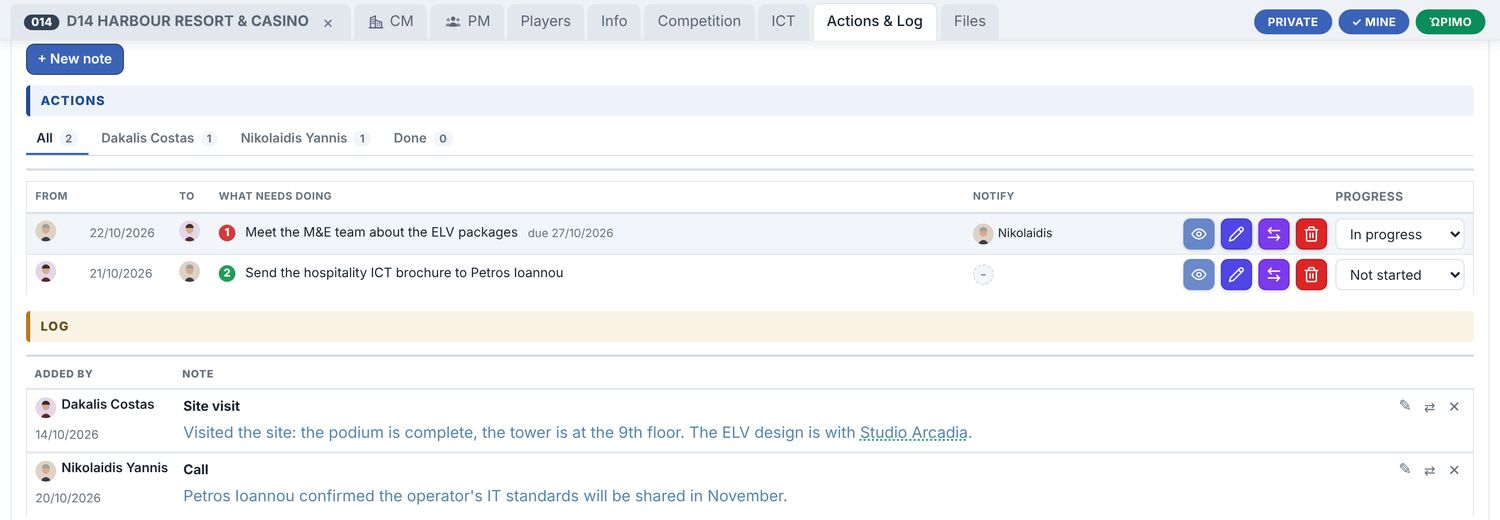
| Notes | Actions on top, then the Log, then Files; + New note — chapter 8. |
| Files | Documents, drawings, photos; paste a picture straight in. |
6Players, CM and PM
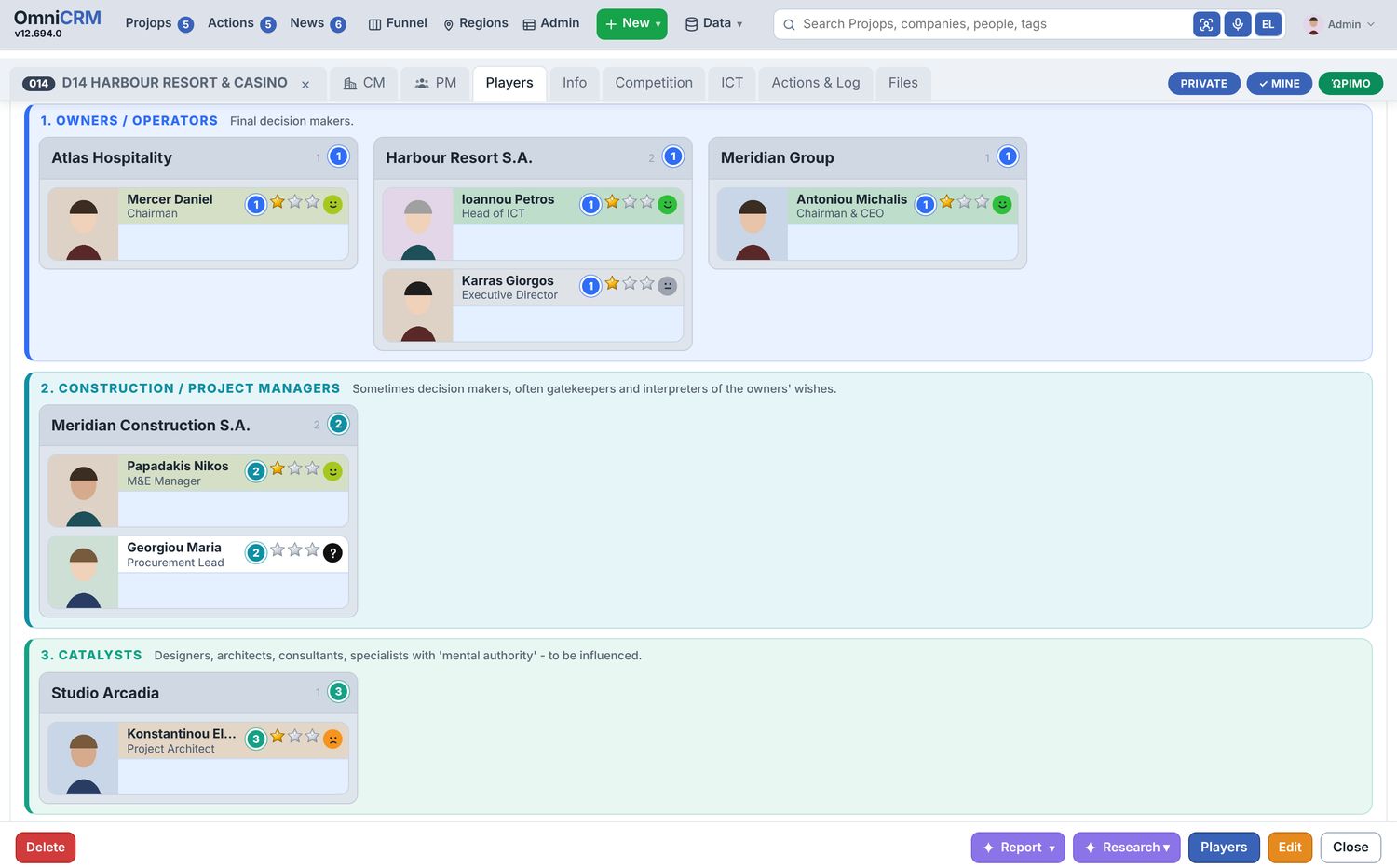
- A person has his own level (by default his company's). Drag a company or person onto another band, or use the numbered level button.
- Stance — click the face to change it:
7Project History and articles
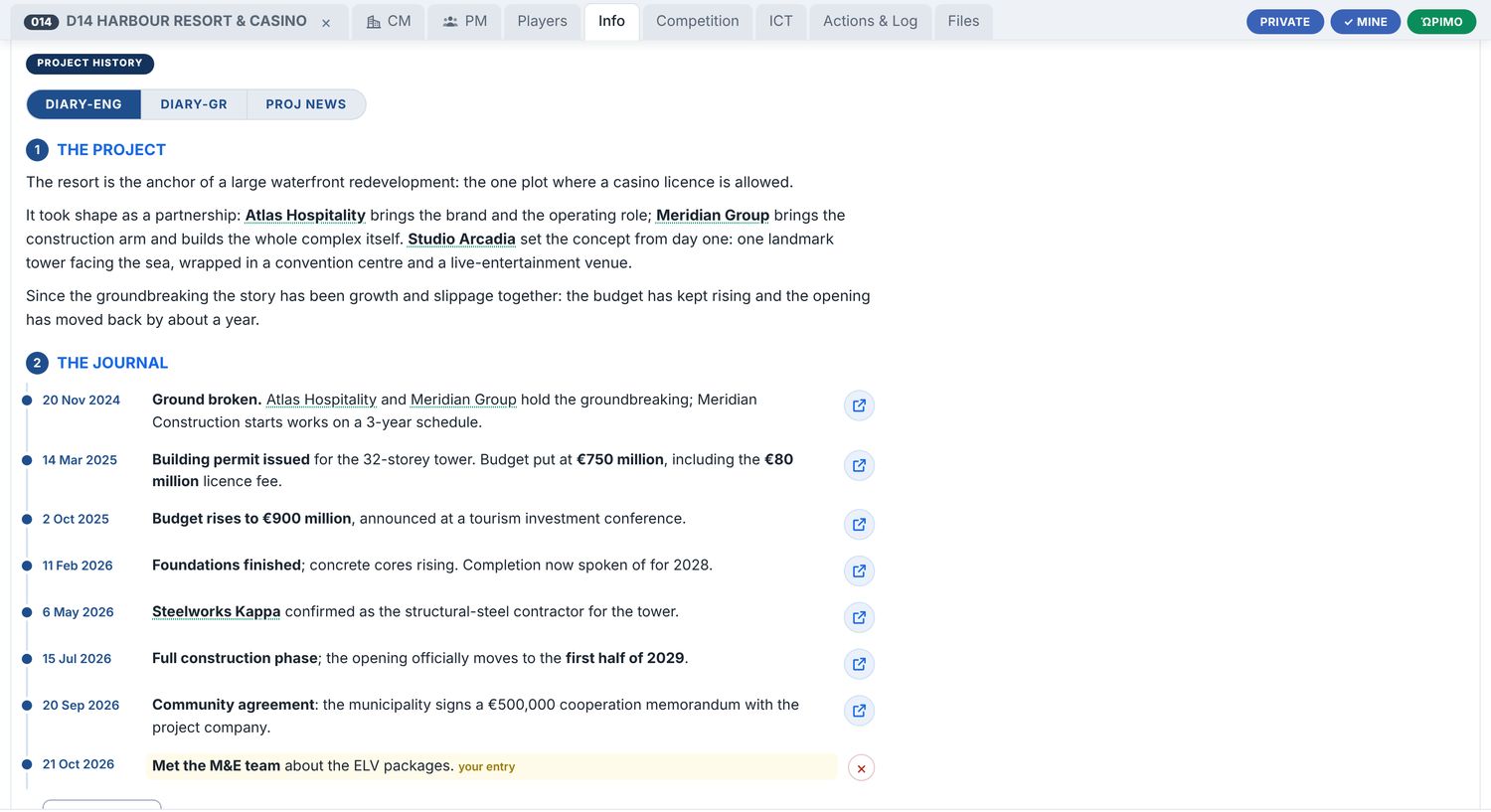
- + Add an entry under the journal: date, text (**bold** works), optional link. × removes your entry.
- Diary-Gr shows the same history in Greek. Proj News lists every article, with new / fresh / total counts.
- Research ▾ › Project History — write / rewrite writes it from the articles (your entries are kept).
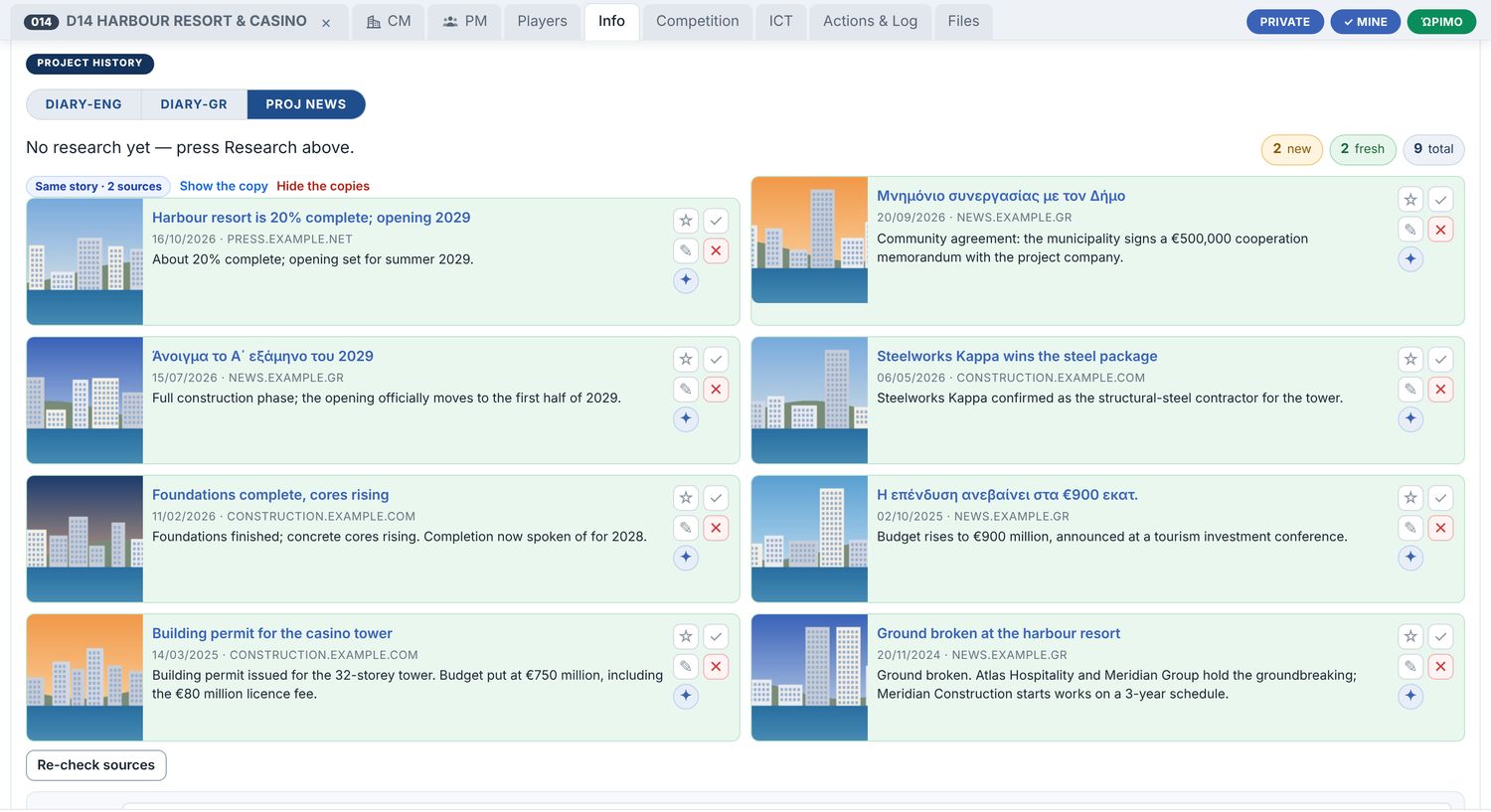
- An article has one owner (a Projop, a company or a person). Duplicates by address or same headline are refused.
- Data › Clean up duplicate articles… shows two lists. 1. Exact copies (same address, or same headline from the same site) are ticked: Hide them for you, or (admin / editor) Delete for everyone. 2. Look-alikes (maybe the same story, maybe not) are shown side by side, nothing ticked: Hide this one only — they are never deleted from here.
- Competition and ICT articles stay on their own tabs; they never appear in Proj News or Home › News.
8Actions, Log, Notifications
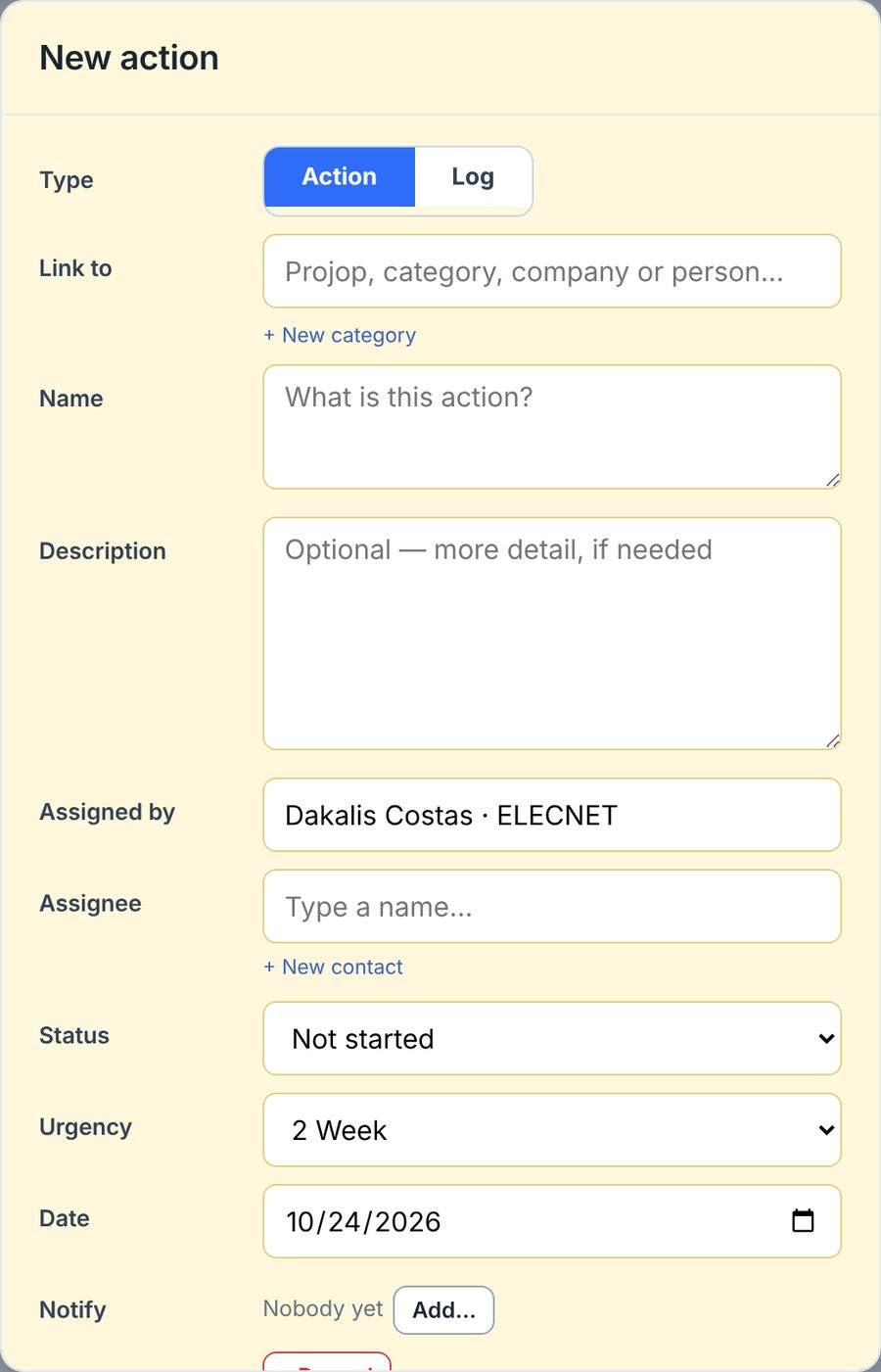
| Urgency | Means |
|---|---|
| 0 Yesterday | Should already be done |
| 1 ASAP | Today |
| 2 Week | This week (default) |
| 3 Month | Real work, no deadline |
- Row buttons: 👁 view (with its notes thread) · ✎ edit · ⇄ move between Action and Log · 🗑 delete · progress (Not started, In progress, Done, Blocked).
- Log entry: title, text, Added by, ★ Important / SOS, Notify, attachments (photo, file, voice memo).
- People pickers search everyone, in Greek or Latin; + New contact is under Assignee.
- Notify puts the item in that person's Notifications. Nothing is emailed: Data › Notification report… writes one ready-to-paste message per person.
9AI research — the AI collects, you decide
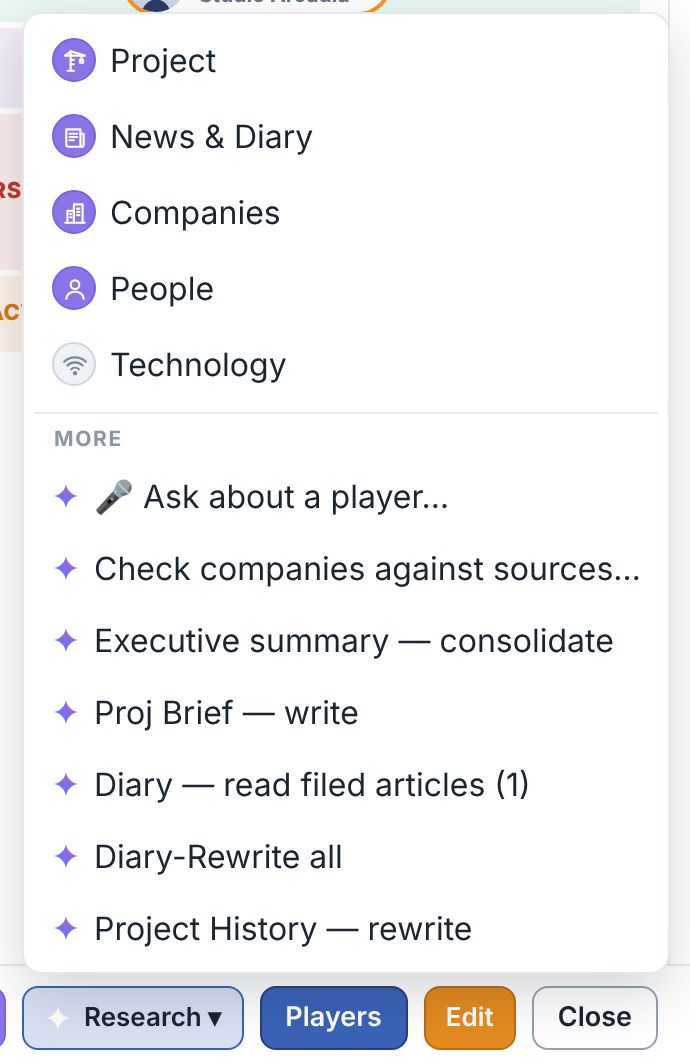
Research freshness. On the Key facts row, at the right, four circles (Project, News & Diary, Companies, People). The colour is the age of the last run: green up to a month, orange up to three months, red older than three months, pale grey never. The tooltip gives the date; a click runs the step. The round priority button sits first, at the left of PRIVATE / MINE / status; when the row is too long the status pill is shortened (…) so it never covers a circle.
Misa waits for you and speaks. Her box does not open by itself. The first time you open OmniCRM each day she greets you aloud in Greek, and she greets you aloud again every time she wakes; everything else happens only when you ask. Her answers are written, not read aloud. She speaks only when she needs something from you: when she does not understand a question, she asks you aloud about the part that was unclear instead of guessing, and the microphone listens again when she has finished. She normally uses the computer's own voice and listening (free). Lime session: hold Misa (anywhere on her) for about a second and she turns lime green; while she is lime, both her listening and her voice are ElevenLabs (better Greek, paid per minute of speech); she hears you live while you talk, so OK works at once. Hold her again to end it; it also ends when you close her box, say τέλος or νάνι νάνι, click the microphone, or say nothing for a minute. Asleep, she lies down at the right edge of the screen, out of the way.
Misa always listens for her name. On a computer she listens from the moment you sign in, without a click (if Chrome asks for one first, the light is grey and one click anywhere starts her). Her spoken greeting needs one click in a normal tab; installed as an app (Chrome ⋮ › Cast, save and share › Install page as app) OmniCRM may speak without it. Say Μίσα or ξύπνα (e.g. «Μίσα ξύπνα») and her box opens and she listens to your question. Double click her = listen; double click again, or say «νάνι νάνι» / «Μίσα νάνι νάνι» = she goes to sleep (still listening for her name); double click while she sleeps = she wakes up.
Misa's two tabs. Reminders is your list for today (Today / Tomorrow / Forget). Search holds your questions and her answers; asking a question opens it. When you ask her to find or search something, or name a website, she also searches your trusted news sources in the same answer. Ask her to look at a company's website (by voice too: say the company and the word website) and she opens the site on the company's card, or finds it, and answers from it with the pages as sources (1), (2). She also opens the pages of that site that your question is about (projects, news, management). A web address typed in the question works the same.
Misa does tasks. Besides answering, she can: open a card ("άνοιξε την καρτέλα του Hard Rock Casino" – the Projop, company or person card opens at once; a report comes only when you say report / αναφορά); open several ("άνοιξε όλα τα κυοφορούμενα" – OmniCRM picks them from its own data, each opens as a tab, and she lists exactly which ones opened; tabs already open stay open); close cards ("κλείσε το Hard Rock", "κλείσε όσα δεν είναι κυοφορούμενα", "κλείσε όλες τις καρτέλες" – she closes the open Projop tabs that match and lists which ones she closed); if you tell her she was wrong, she checks her answer against the data and tells you what was wrong; make a list or table ("all Projops in Attica with status 3 or above and their owners", "the owner companies", "my open actions", "which Projops have no owner") – the rows come from OmniCRM itself, shown in her box with an Excel button; open a report ("the full report for H09", "recent developments of my Projops, last 3 months") – press the Open button she shows; start a research ("refresh the overview of VORIA Casino", "find news for Wyndham") – the usual research starts and nothing is saved without your tick; open a page ("άνοιξε το Funnel", Regions, Admin, Companies, People, Projops, Actions, News, Home, Resources); store a screenshot, a file or a web address – attach it with the paperclip in her box, paste a screenshot (Ctrl+V) into the question box or drop files on her box, and say where it goes ("βάλ' το στο H14") or nothing at all: she reads the screenshot, picks the Projop, company or person (the one you name, the one it is about, or the card you have open) and shows what she will store; it is saved only when you press Save (a file goes to the Projop's Files or the company / person Info, a web address as an article); run the circles that are not green ("τρέξε τις έρευνες που δεν είναι πράσινες στο H14", "… σε όλα τα κυοφορούμενα", "… στις ανοιχτές καρτέλες") – OmniCRM picks the Projops and, for each, the circles never run or older than a month, and runs them one after another as if you clicked each circle; each opens its own review, and the next starts only when you have closed it; her box shows which ones and how far she is, with Stop; add an action or a log entry ("add an urgent action for Christos on VORIA: call the client") – she shows what she will write and saves it only when you press Create / Save. She never deletes, merges or creates companies or people.
Misa's box size. The arrows in her header make the box big or normal (remembered). The question box grows with what you type or say; drag the small bar above it up or down to make it as tall as you like (double click the bar = normal size). Switching EL / EN while she listens starts a new question in that language.
Misa on a phone. Her box opens above or below her, never over her; a double tap on her turns the microphone on.
Moving and minimizing her box. Drag her box by its dark title bar to put it anywhere (double click the bar to bring it back beside her); the – button shrinks it to the title bar and back, while she keeps listening. Misa by drag and drop. Drag Misa onto one of the four circles and she runs that research. Drag her onto a company or a person (a name, a card, a row) and she searches Market news on them. Dropped anywhere else, she stays there until you open OmniCRM again. When OmniCRM opens she sits beside the My Projops heading and her box opens to her right. A double click on Misa turns on the microphone. By voice she keeps listening through your pauses and writes what she hears in the box; nothing is asked until you say OK (or GO) as the last word. If she writes the word differently and does not start, press Ask: it sends what she heard the same way. Say ξανά (again) to empty the box and start over, or λάθος (wrong) followed by what was wrong, and she rewrites the phrase. While she looks for the answer the microphone is pale grey (not listening); when the answer is there it turns red again and she listens for your next question. Say stop (στοπ / σταμάτα) and she stops whatever she is doing: speaking, looking for an answer, or a research she started. Say τέλος (over) and she goes back to waiting for her name; only the microphone button switches her listening off. The light on Misa: green = waiting for her name, red = listening to you (or working on your question), grey = not listening - hover it to see why. Say νάνι νάνι and she closes her box, lies down with her eyes closed and sleeps: the microphone stays on but she reacts only to her name. Say Μίσα (or click her) and she wakes: she gets up, the box opens, she says «Καλησπέρα» (or «Καλημέρα») and your name aloud, and she listens again when she has finished. Closing her box while she listens puts her back to waiting for her name.
| Step | Does |
|---|---|
| Project | Summary, brief, articles, then Key facts — each with its source. |
| News & Diary | New articles, read into the diary / Project History. |
| Companies | New companies named in the articles, or refreshed profiles. |
| People | New people in the articles, or deeper research on those on file. |
| Technology | ICT ideas from comparable projects (ICT tab). |
| More | 🎤 Ask about a player · Check companies against sources · Executive summary — consolidate · Proj Brief — write · Diary upkeep · Project History — write / rewrite. |
Custom research — your own prompt
First item of every Research ▾ (Projop, company, person). Write the search words (plain words, as in Google), the prompt (what to find out), pick the date range and the language, and Save prompt to reuse it on any card (it follows you to both computers). OmniCRM searches the web, opens every page and reads the page's own date; pages outside the range or language are left out (and counted). The AI answers only from those pages, each fact with its numbered source. You tick which sources to file on the card and whether the answer goes to the Log — nothing is saved otherwise.
Article dates are the date the page itself states (its published date or the date in its address) — never the AI's and never the day it was filed. An article with no date is listed under No date in the diary and is not counted as a new development.
Certainty — never assumed
- A person is "Confirmed" only when a result's own text shows his name and his company (or its website). Otherwise you see Possible matches and nothing is saved until you press This is the one.
- A company with only a name gets Possible matches (one per website carrying the name); picking one re-runs research on that website.
- A company website is its identity; a famous namesake is not our person; Kostas = Konstantinos.
- Check companies against sources re-reads only what is filed on the Projop and grades each AI-added company: Proven · Mentioned, not linked · Not found · Contradicted. Removal is pre-ticked only for the last two.
- When a name already exists, the review lists every matching card next to Create new — nothing preselected.
Uncertainty badges
⚠ Sources differ two sources disagree (hover: which) · ⏱ 9 mo the newest source is old (6 months for moving facts such as phase, opening, status; 12 months for the rest, profiles and CVs) · No source a researched value with no article behind it. Better no information than wrong information.
10Company and person cards
| Feature | How |
|---|---|
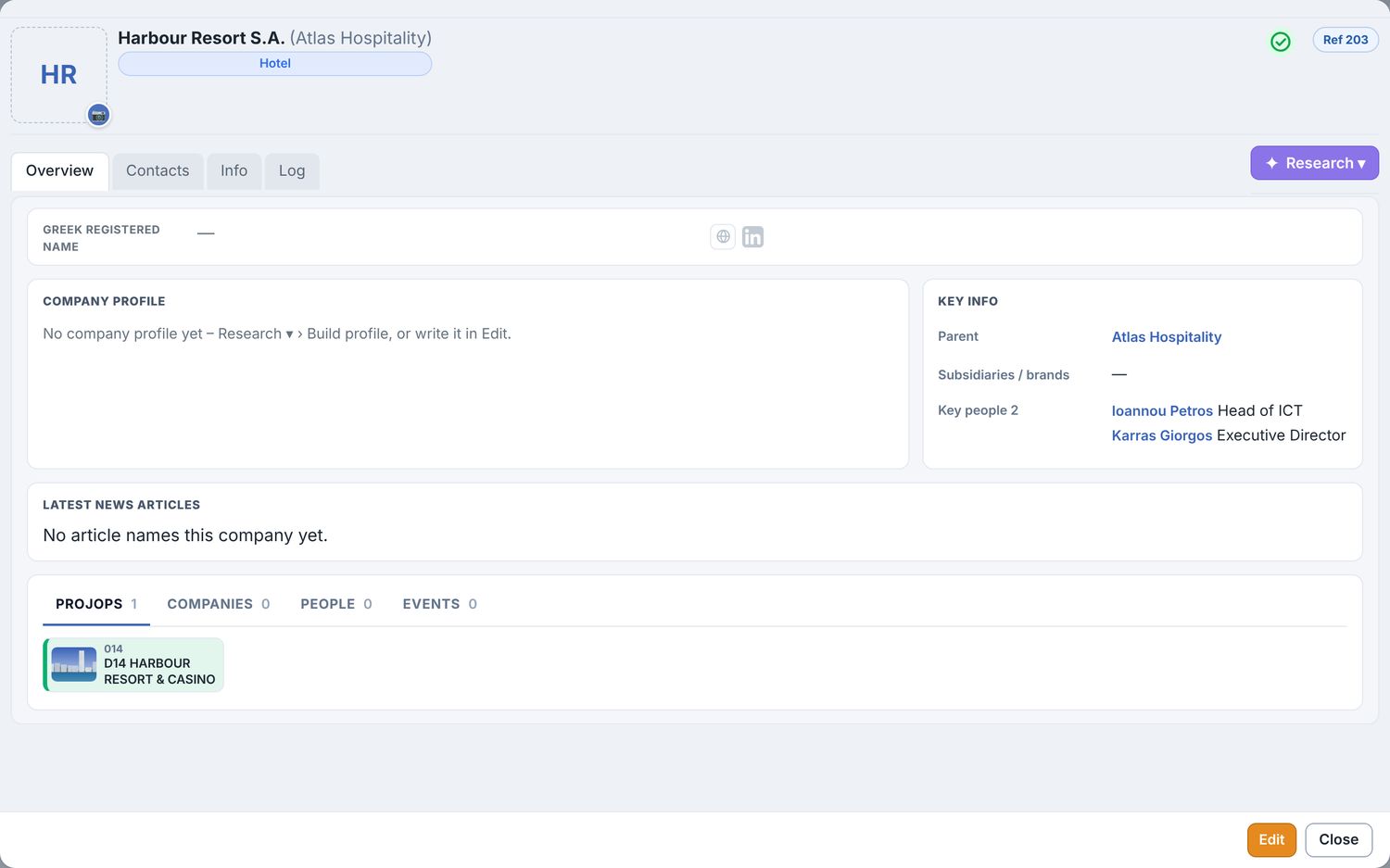
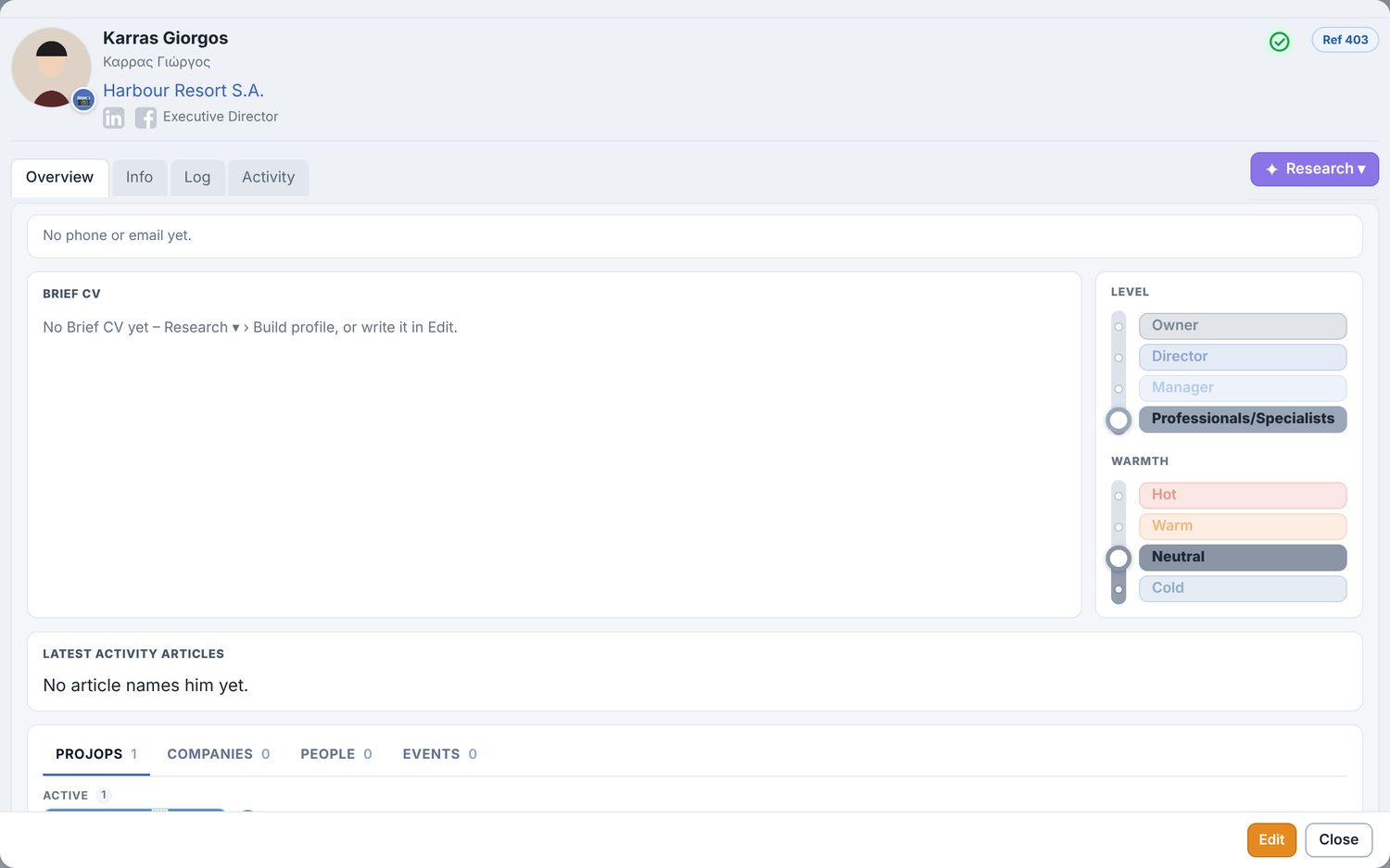
| Research ▾ | Company: Profile · Market news · Find LinkedIn · Key people · Build profile. Person: Profile · Market news · Find LinkedIn · Build profile. Build profile reads only what OmniCRM holds; you review before saving. |
| Parent / subsidiaries | Edit › Key info: Parent picker, + Add a subsidiary / brand. Both sides update. A parent's Projops tab also lists its subsidiaries' Projops ("via …"). |
| Contact details | Left: Mobile, Telephone, Other (a link to any platform). Right: Email, LinkedIn, Facebook. |
| Connections | Projops / Companies / People tabs: Connect a company… / person… — + Create "…" when it is not in OmniCRM. |
| Info tab | Paste a link (headline, picture, summary are read) or type a note. |
| Organization type | The + beside Type adds a new type. |
| Edit | The same as a Projop: Edit → change → Save or Cancel. Leaving a box saves nothing. |
| Latest news | Each article once. A story filed on a sister company (it names this one too) is not repeated. |
| New company | If the name is already in OmniCRM in the other alphabet or with another ending (ΓΕΚ ΤΕΡΝΑ Α.Ε. = GEK TERNA S.A.), you are asked first; an archived twin is restored, not copied. |
11Search and Who is this?
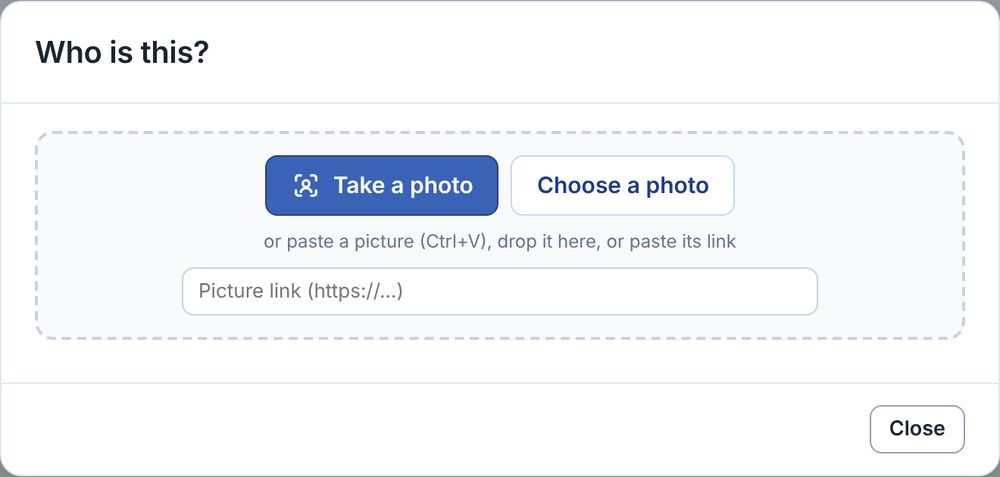
- The face is compared only with the people in OmniCRM, on your device; no photo goes to an AI.
- You get the top candidate, then the others ranked by certainty %. Pick one: Open card, use the photo on his card, or write a log note ("Met at …"). Nobody? + New contact with this photo.
- Once: Admin › People › Actions › Prepare faces reads every person's photo.
12The OmniCRM Clipper (Chrome extension)
| Right-click item | Does |
|---|---|
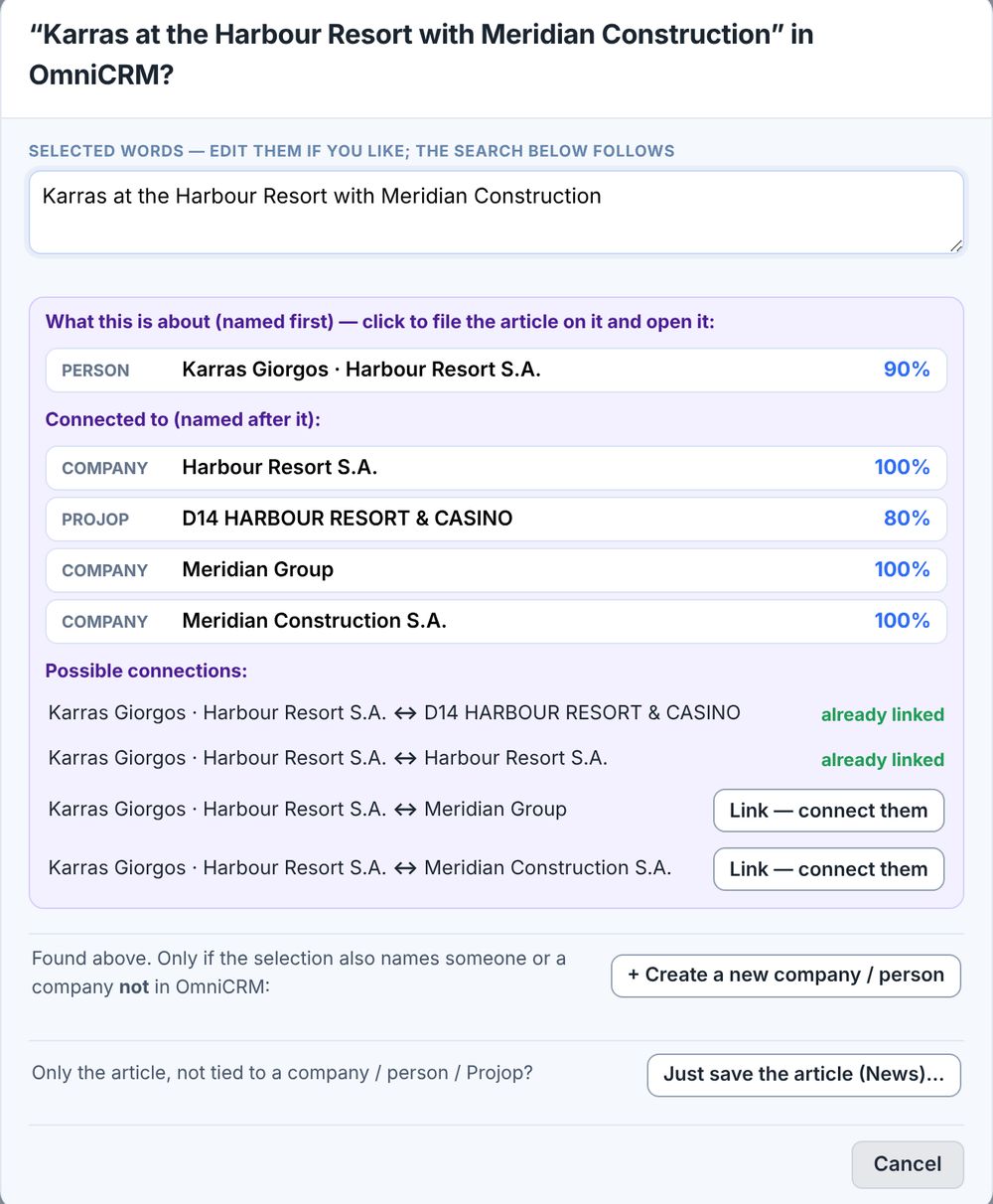
| OmniCRM: "…" | Searches OmniCRM first; each match is a button Save the article on … (exact / % match) that files the article there and opens it; a record the article is already filed on says Already filed on … – open the card; proposes links; n related – show opens the records where only part of your words fits (lower %, or the words are in a Projop's location / Proj Brief; codes in brackets such as (GR) and legal endings are ignored); when anything is found the Create form stays closed until you press + Create a new company / person / Projop…; it creates only what is missing — a person, a company (with Subsidiary of / Connected to) or a Projop (the words are its name, the company named first its Owner). Just save the article (News)… at the bottom. |
| Save this page / link… | Files the article on a Projop (existing or + New Projop), company, person or News topic. |
| Import the people on this page… | A speakers / team page: one review of who is new, who matches. |
| Use this picture… | As a photo, logo or Projop picture. |
The selected words are editable before searching. After an update: chrome://extensions › OmniCRM Clipper › reload.
13Admin Area
Tabs Projops · Organizations · People, List | Cards, then four buttons on the right: Filters ▾ (Sector, Proj Status / Status, and Saved filters: Save the current filters… keeps the filters of the tab under a name; click the name to apply them again, × deletes it; the button shows how many filters are on), Columns ▾, Actions ▾ (On the ticked rows / Whole list) and Data ▾. A click on a name opens it in Edit; Ctrl / middle click opens a new tab. Tick rows for the bulk bar (archive, change status, merge, delete where allowed).
| Tab | Actions ▾ |
|---|---|
| Projops | Check companies… (ticked Projops) · a Research column shows which need research · an Owners column shows the companies on level 1 (Owners / Operators) of its Players tab. An Operator column shows the Operator of its Key facts. |
| Organizations | Fetch website, LinkedIn and logo… (old → new per field, you approve) · a Layer column shows the levels the company holds on Projops; its drop list in the column head filters by level (e.g. 1 Owners / Operators). |
| People | Correct Greek names… · Import people from a web page… · Prepare faces (Who is this?)… · Find profile photos… · Fetch LinkedIn, Facebook and photo… · Find duplicates… · Put Latin names first… · Add name versions… · Name sorts by Last | First. |
Archive, never delete: the icon beside the Ref toggles active ↔ archived; archived records leave the working lists but stay findable.
14Data menu and reports
| Item | Does |
|---|---|
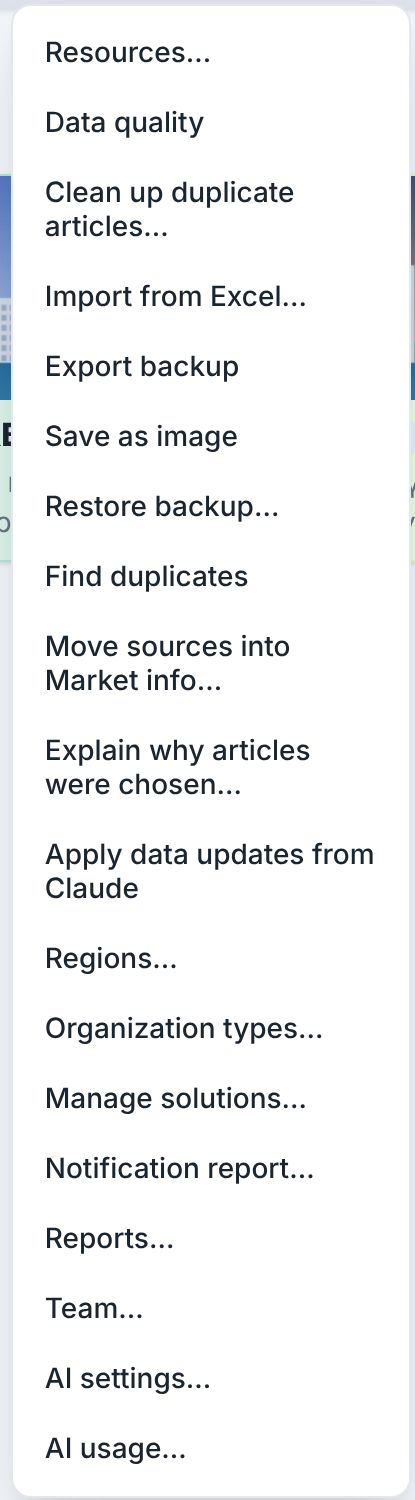
| Resources… | Events, associations, public bodies, media, data sources, tender portals, networks, schools, advisors, tools — with their people, companies and Projops. |
| Data quality | Incomplete, duplicated or unchecked records, grouped; each row opens the record. |
| Clean up duplicate articles… | Delete or hide exact copies in bulk; look-alikes can only be hidden, one at a time. |
| Import from Excel… · Export / Restore backup | Restore merges (updates, re-creates, never deletes). |
| Save as image | A PNG of the screen. |
| Find duplicates | Find and merge duplicate contacts. Everything attached to the duplicate (articles, notes, links, Projop roles, stars) moves to the record you keep before it is deleted — all or nothing. |
| Explain why articles were chosen… | AI writes 1–2 sentences on articles with no note. |
| Apply data updates from Claude | Saves prepared, fact-checked corrections with your sign-in. |
| Regions… · Organization types… · Manage solutions… | Edit those lists. |
| Notification report… | One ready-to-paste message per person. |
| Reports… | Recent developments · Project progress · My Projop briefing. |
| Team… · AI settings… · AI usage… | Who writes logs and hands out actions · AI prompts · free quotas used and when they refill. |
15Roles and data safety
| Role | Can |
|---|---|
| Admin | Everything, including users, deletions and settings. |
| Editor | Create and edit any record; delete what they created. |
| User | Add notes and actions; edit and delete only their own. |
| Viewer | Read only. |
Rules are enforced by the database (row-level security). Mine, hidden articles and KD-only notes are visible only to their owner. Files open through short-lived links. All AI work runs on the server, never in the browser.
16Rules that hold everywhere
- Nothing the AI finds is saved without your tick; every run can be cancelled.
- Every link was returned by a real search and opened before it was filed.
- One card per company and per person; their role on a Projop lives on the Projop.
- Uncertain, old or unsourced information is marked; better none than wrong.
- Every Research button opens a menu first; violet ✦ buttons spend AI.
- Every search box — people, companies, Projops — finds any word in any order, Greek or Latin.
- Edit → Save or Cancel on every card; nothing saves when you leave a box.
- The same article is never filed twice on one card. Hide removes an article from your own lists; Delete for everyone (✎) and the admin's Delete the duplicate on a Same story bar remove it for all.
- Dates read dd/mm/yyyy and money 1.200.000 € everywhere.
- Archive, never delete records.
- Back / Forward and refresh always return to the same place.
17When something looks wrong
| You see… | Do this |
|---|---|
| A change you expected is not there | Press Ctrl+Shift+R; check the version under the logo. |
| Someone is missing from the players | Add him on the Players tab (or with + on Key players). |
| Research found nothing | Read the message: nothing found, a search service out of credit, or the daily limit — they differ. Data › AI usage shows which. |
| Research is "not sure" | Pick the right one under Possible matches (This is the one), or add the website to the card. |
| The same story appears many times | Data › Clean up duplicate articles… |
| A Projop is not in the expected Funnel box | Check its Proj Status pill. |